How to Cast Xuper TV to Your TV With Chromecast
Two ways to get it on the big screen
Native casting (preferred)
- Plug the Chromecast into the TV and put your phone on the same Wi-Fi network (check the band, 5 GHz phone plus 2.4 GHz Chromecast will not see each other on some routers).
- Open Xuper TV on the phone and start playing something.
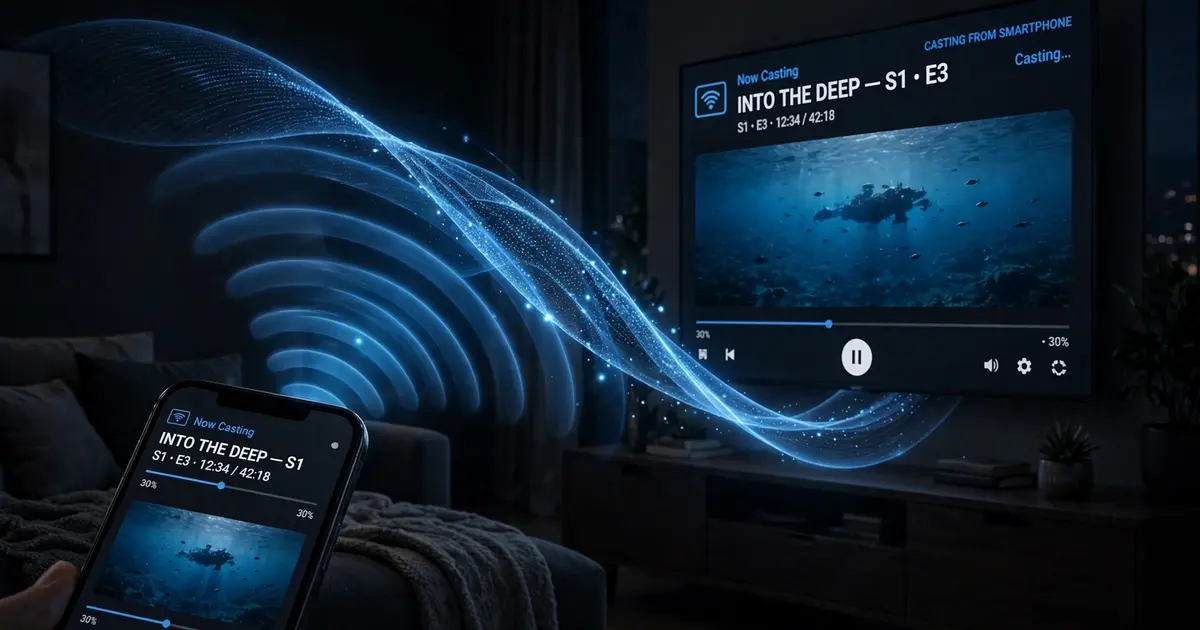
- Tap the cast icon in the player and pick your Chromecast. The TV takes over the stream directly.
- Your phone becomes a remote: pause, seek and change titles without interrupting playback.
Screen mirroring (fallback)
If the build you have shows no cast button, mirror instead: open Google Home, select the Chromecast, tap Cast Screen. Everything on the phone appears on the TV. It works with any content but uses more battery and can stutter on weak Wi-Fi.
When the TV does not show up
- Same network, really. Check the phone's Wi-Fi name against the Chromecast's in Google Home. Matching names on different bands still fail on some routers.
- Restart discovery. Toggle the phone's Wi-Fi off and on, then reopen the app.
- Reboot the Chromecast. Unplug it for 10 seconds. Discovery is the flakiest part of the whole stack and a reboot fixes most of it.
- Router AP isolation. Some routers (and almost all hotel or office networks) block devices from seeing each other. There is no app-side fix; use your own router or a travel router.
Quality and buffering while casting
Casting moves the stream load to the Chromecast, so the TV's network path is what matters. If the picture stutters, run through the buffering fixes with the Chromecast's connection in mind, and check the speed requirements for the quality you picked. For a permanent setup, nothing beats installing the app natively with our Android TV guide and skipping the phone entirely.