
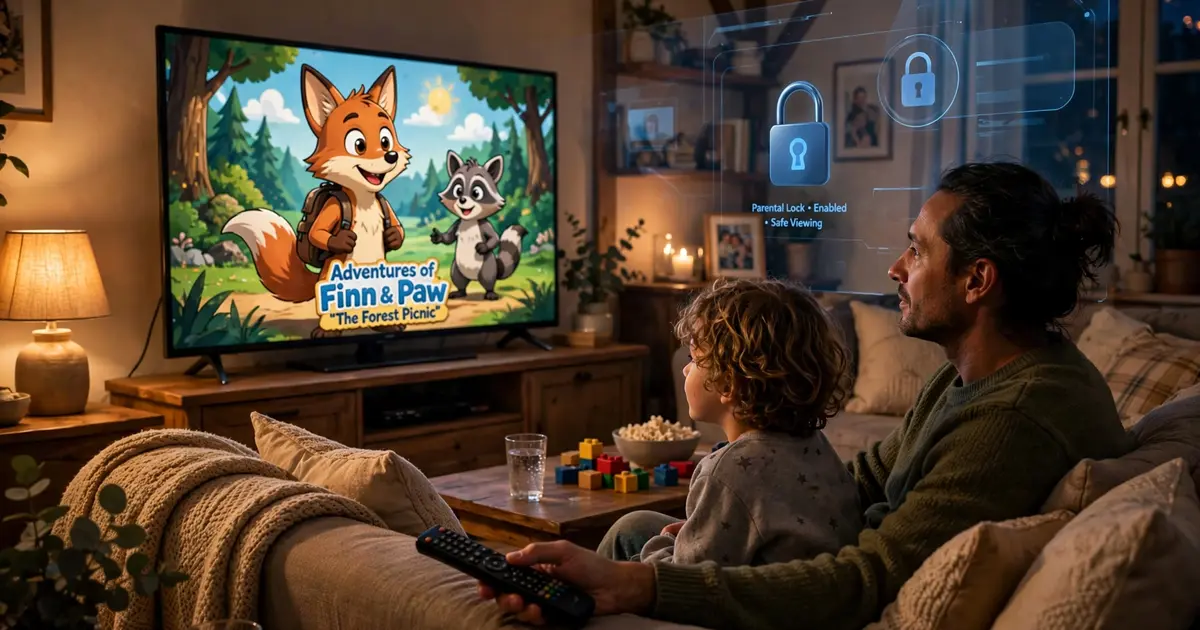
Xuper TV Parental Controls: Locking Down the Kids Corner
What the controls actually do
Xuper TV's parental controls are a PIN lock inside the app. You enable it in settings, pick a code, and choose which sections require the code to open. It is simple and effective for its purpose, but understand the boundary: it locks the app's categories, it does not filter the internet, and anyone who can uninstall and reinstall the app can reset it.
Setting it up (5 minutes)
- Open Xuper TV settings and find Parental Controls.
- Enable the lock and set a PIN you will remember. There is no email recovery, so a forgotten PIN means reinstalling.
- Select which sections need the PIN: live TV and movies first, then series.
- Leave the kids category unlocked so children can browse freely inside the safe zone.
- Lock the settings section itself if the option exists, so the PIN cannot be disabled without the PIN.
The honest limits
- Young kids: works well. A 6-year-old is not reinstalling APKs. The PIN keeps them in the kids corner.
- Teens: partial. Anyone who can sideload can reset the app. For teenagers, combine the app PIN with Android's own parental tools (Family Link and friends) at the device level.
- Shared TV: set the PIN before the first family movie night, not after someone stumbles into the wrong section.
Beyond the PIN
Good habits beat any lock: keep the TV in a common room, use the channel list to pre-build a favorites row of approved channels, and check the language settings so kids get their interface in the language they read best. Controls are a backstop; curation is the real parenting.