
How to Clear Xuper TV Cache (Fix Crashes and Stuck Loading)
Cache vs data: the distinction that matters
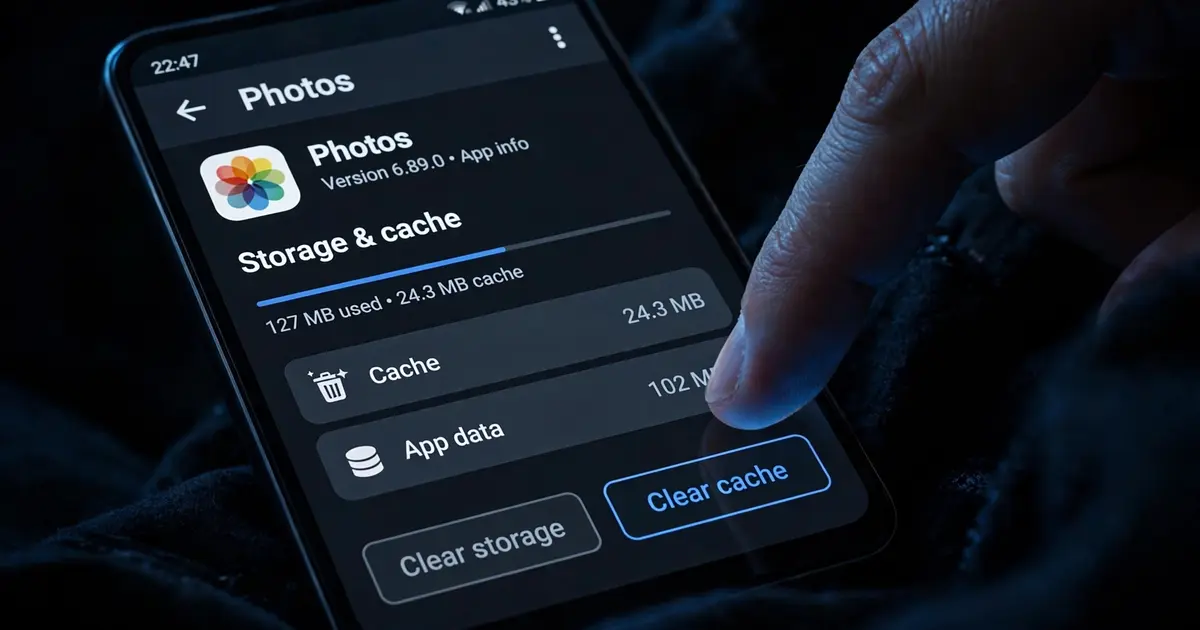
Clear Cache deletes temporary files: thumbnails, fragments of streams, stale layouts. Your favorites, settings and downloads survive. Clear Data (sometimes called Clear Storage) factory-resets the app: everything goes. When guides say "clear the cache", they mean the safe one. Read the button label twice before tapping.
On Android phones and tablets
- Open Settings, then Apps (or Apps and notifications).
- Find and tap Xuper TV in the list. Use the search box if the list is long.
- Tap Storage (or Storage and cache).
- Tap Clear Cache. Confirm if asked.
- Reopen the app. First launch rebuilds the cache, so give it a few extra seconds.
On Android TV / Google TV
- Open Settings from the home screen.
- Go to Apps, then See all apps.
- Select Xuper TV, then Clear cache (and Force Stop first if the app is misbehaving).
On Firestick / Fire TV
- Open Settings, then Applications.
- Select Manage Installed Applications.
- Choose Xuper TV, then Clear Cache.
What cache clearing fixes
- App crashes on open or after a few seconds
- Endless loading on screens that used to work
- Stale guide data in the EPG
- Thumbnails that never load and blank poster grids
- General sluggishness after weeks of heavy use
What it does not fix
Network problems, dead stream sources and install errors live outside the cache. If clearing changes nothing, work through the not working checklist or the buffering guide depending on your symptom.