Xuper TV on Firestick: Install With the Downloader App
What you need
Any Fire TV Stick, Fire TV Stick 4K, or Fire TV Cube, connected to Wi-Fi, with about 200 MB free. The whole job happens on the stick itself, no computer, no USB cable, no ADB.
Step 1: Install Downloader
From the Firestick home screen, search for Downloader (orange icon) in the Amazon Appstore and install it. It is free and made for exactly this job.
Step 2: Let Downloader install apps
Open Settings, then My Fire TV, then Developer Options. (On newer Fire OS, if Developer Options is hidden, go to About and click the device name seven times to reveal it.) Turn on Install unknown apps and allow it for Downloader. While you are here, some people also enable ADB debugging, but it is not needed for this install.
Step 3: Fetch the APK
- Open Downloader. Dismiss the welcome screens.
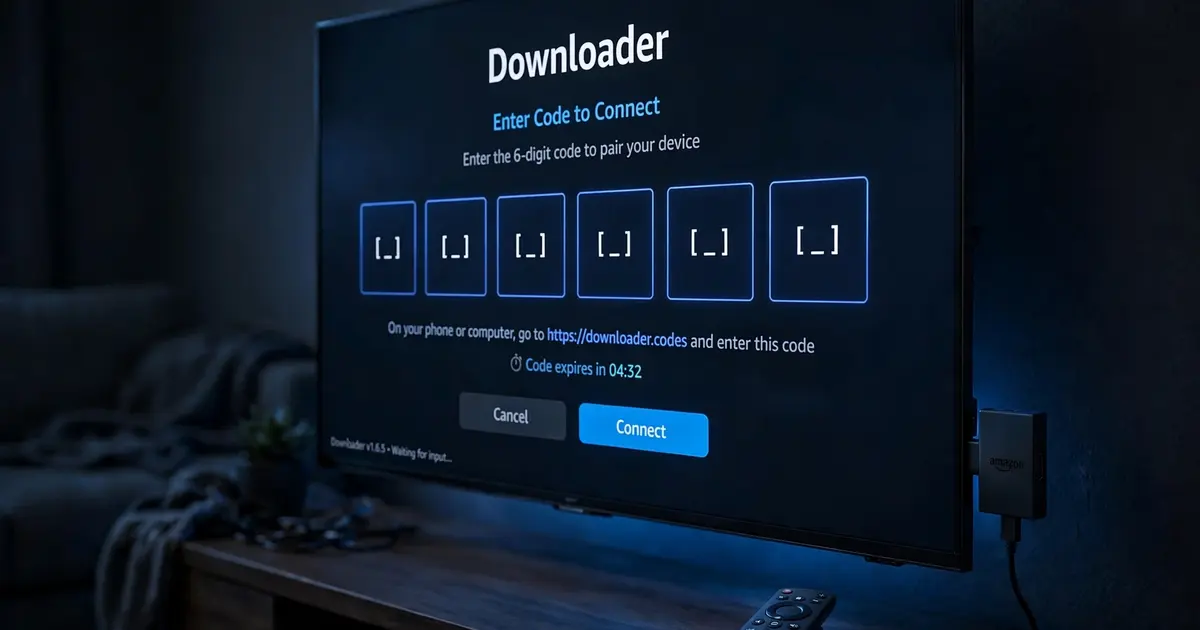
- In the URL bar, type the address of our Super TV APK download page. Prefer typing as little as possible? Use one of the short numeric Downloader codes for Xuper TV instead.
- Wait for the 6-second countdown on the page and press the download button with your remote. The 48.7 MB file downloads inside Downloader.
- When it finishes, Downloader shows the Android install prompt. Select Install.
Step 4: Open it and clean up
Press Open when the install finishes, or find Xuper TV in your Apps library later. Back in Downloader, delete the APK file when offered, since the installed app no longer needs it and stick storage is precious.
Making it remote-friendly
If menus feel fiddly, you probably have the phone build. It works, but a few screens want touch input. Two fixes: install Mouse Toggle for Fire TV (free, gives you a cursor driven by the remote), or switch to the TV-oriented build covered in our Android TV guide. The TV vs mobile version comparison helps you pick.
Firestick-specific tips
- Storage. Firesticks fill up fast. If installs start failing, check Settings, then Applications, and clear cache on apps you rarely open. Our clear cache guide shows the exact path.
- Buffering. Sticks on weak Wi-Fi are the classic buffering case. The buffering fix guide starts with a 30-second speed test and goes from there.
- Updates. Sideloaded apps never auto-update on Fire OS, so re-run this process when a new version lands, installing over the old one keeps your favorites.